




A Better Way to Bank Is Here
We’ve upgraded your online and mobile banking experience to make managing your money simpler, faster, and more secure—with powerful new tools, enhanced features, and a fresh look that lets you bank with confidence anytime, anywhere.
This page contains helpful tips and resources, so you know what to expect every step of the way.
Benefits of the New Online Banking
⚡ Faster Payments & Transfers
Move money quickly and easily—whether you’re paying bills or sending funds to friends and family.
💸 Smarter Money Management
Track spending, set goals, and stay on top of your finances with built-in budgeting tools.
🔒 Upgraded Security
Enjoy peace of mind with advanced security features that help keep your information safe.
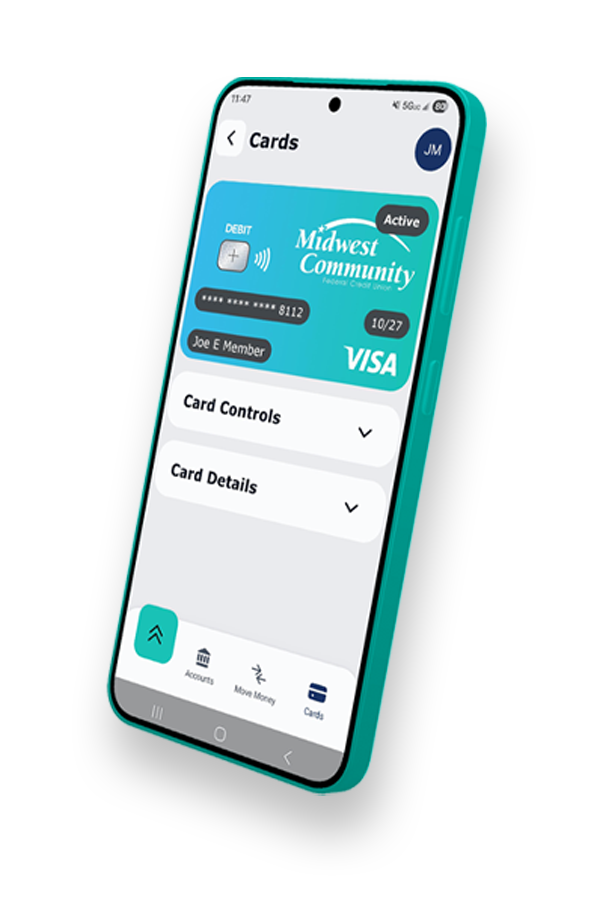

New Online Banking & MC Mobile Links
You can log into the upgraded digital banking on desktop by clicking here, or by clicking “Sign In” on the homepage. The updated apps can be found at the links below.


Need Help Getting Started?
We’re here for you. Check out our quick tutorials or contact our team for support.
Logging In
After the Upgrade
Digital Banking Upgrade
Virtual Tour
How to Create a Member-to-Member Transfer Code
Setting Up Member-to-Member Transfers
How to Customize Your Account View
How to Set Up Skip-a-Pay
Online & Mobile Banking Alerts
Frequently Asked Questions
Q: Will I need to re-enroll?
No, but you will need to reset your password upon logging in the first time. Other features like Account-to-Account Transfers will need to be re-established.
Q: Why am I not receiving the verification codes?
First verify that you are entering the correct username and password. If either of those credentials are incorrect, you will not receive a code. If this is the first time you are logging into the upgraded site, please reach out to us by calling or texting 419-783-6500. If you have previously logged in, please click on Trouble Signing In and follow the instructions to recover your username or change your password. Still having trouble? Give us a call for help!
Q: Am I able to change the language in my online/mobile banking?
Yes, currently our online banking is available in both English and Spanish. To switch to a different language, simply go to Profile & Settings > Settings > Customization > Language > English or Español. Your screen will then automatically update to the language of your choice.
Q: What kinds of accessibility options do you offer?
We offer a range of fonts and color themes to better your online banking viewing experience. To customize your theme, go to Profile & Settings > Settings > Customization > Appearance > Current Theme. To change fonts go to Customization > Fonts > Current Font. From here, there are a multitude of accommodations for colorblindness as well as dyslexia. Simply click whichever best suits your needs and the system will update accordingly.
Q: Can I activate my card on the app?
No. To activate your debit card, please call 866-985-2273 from the phone number associated with your MCFCU account. To activate your Visa credit card, please call 800-553-4291.
Q: How do I set up alerts for my credit card?
To set up alerts on your credit card, you must first go to the app tray/dashboard and then click Cards > Manage Card > More > Notification Settings. This will allow you to customize how you would like to get transaction alerts on your selected card.
Q: How do I set up biometrics on my MC Online app?
IOS Users: To set up Face ID to log in to your MC Online app, click on the profile icon in the top right corner > Settings > Mobile Features > Toggle on Face ID.
Android Users: To set up a fingerprint scan for log in to your MC Online app, click on the profile icon in the top right corner > Settings > Mobile Features > Toggle on Fingerprint.
Q: I forgot my username/password. How can I get back into my account?
If you have forgotten your log in credentials, please go to Trouble Signing In? below the Sign In button at the home page. Follow the prompts to retrieve your username or reset the password.
Q: How can I block/unblock my debit card?
To block or unblock your debit card, click on the Card icon. Locate and click on the card you want to block/unblock, then click the Card Management button. Your card details will display with a green Lock button or red Unlock button. Tap and confirm your choice. If you need additional support, please reach out to our Member Services team by texting or calling 419-783-6500.
Q: How can I change my personal information, like phone, email or address?
Tap the icon with your initials in the top right corner and select Settings, the Personal Information. Your contact information will be displayed. Click the pencil icon to edit your contact information and tap Save or Update when finished.
Q: How can I find recent checking transactions?
From the accounts page, click on your checking account. The most recent transactions will be listed below. To see more, click on See All Transactions or use the filter icon to research a particular transaction, date range, or series of checks.
Q: Where can I find my Routing number?
Click on More Services, then tap Routing & Account numbers. MCFCU’s Routing number will be listed at the top of the page. Below you will find your account numbers and share IDs.
Additional Resources
Intuit - ATTENTION QUICKBOOKS & QUICKEN USERS
Midwest Community Federal Credit Union’s online banking transition will require that you make changes to your QuickBooks or Quicken software. Please take action to ensure a smooth transition. Important action dates are included here.
Conversion instructions are available below.
1st Action Date: June 13, 2006 (6:00pm)
Please perform a data file backup and a final transaction download by this date. Be sure to complete these actions before this date since transaction history might not be available after the upgrade.
2nd Action Date: June 15, 2026
This is the action date for remaining steps of the conversion instructions. You will complete the deactivate/reactivate of your online banking connection to ensure that we get your current Quicken or QuickBooks accounts set up with the new connection.
Conversion instructions
Quicken – click HERE
QuickBooks Desktop – click HERE
QuickBooks Online – click HERE
- Quicken Win/Max Express Web Connect
- QuickBooks Online Express Web Connect
Please carefully review your download transactions after completing the migration instructions to ensure no transaction were duplicated or missed on the register.
If you have any questions, please contact us at 419-783-6500.
Still Have Questions?
Use this form to reach our Digital Branch by email, or you can call/text 419-783-6500.
Branch Locations
Main Office08770 State Route 66 Defiance, OH 43512 view map Call or Text: (419) 783-6500 Fax: (419) 783-6550 ATM Access Available | Drive-up Hours: Mon - Thur: 8:00am - 5:30pm Fri: 8:00am - 6:00pm Sat: 8:00am - 1:00pm Sun: CLOSED Lobby: Mon - Thur: 8:30am - 5:00pm Fri: 8:30am - 5:30pm Sat: 8:30am - 1:00pm Sun: CLOSED |  |
Napoleon Branch1429 North Scott Street Napoleon, OH 43545 view map Phone: (419) 599-5522 Text: (419) 783-6500 Fax: (419) 599-5537 ATM Access Available | Drive-up Hours: Mon - Thur: 8:30am - 5:00pm Fri: 8:30am - 5:30pm Sat: 8:30am - 12:00pm Sun: CLOSED Lobby: Mon - Thur: 8:30am - 5:00pm Fri: 8:30am - 5:30pm Sat: 8:30am - 12:00pm Sun: CLOSED | 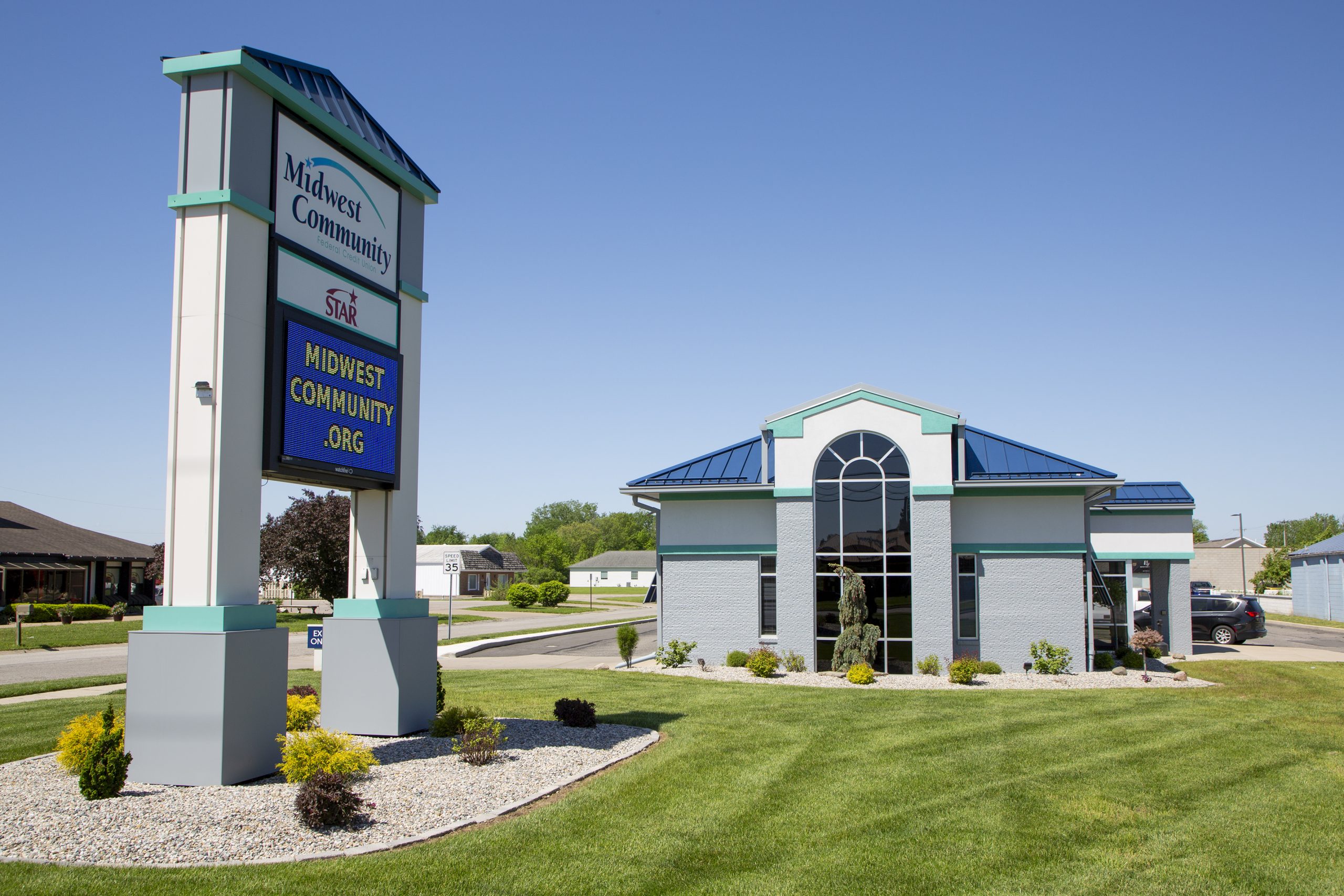 |
Bryan Branch221 N. Main Street Bryan, OH 43506 view map Phone: (419) 633-0571 Text: (419) 783-6500 Fax: (419) 633-0572 ATM Access Available | Drive-up Hours: Mon - Thur: 8:30am - 5:00pm Fri: 8:30am - 5:30pm Sat: 8:30am - 12:00pm Sun: CLOSED Lobby: Mon - Thur: 8:30am - 5:00pm Fri: 8:30am - 5:30pm Sat: 8:30am - 12:00pm Sun: CLOSED | 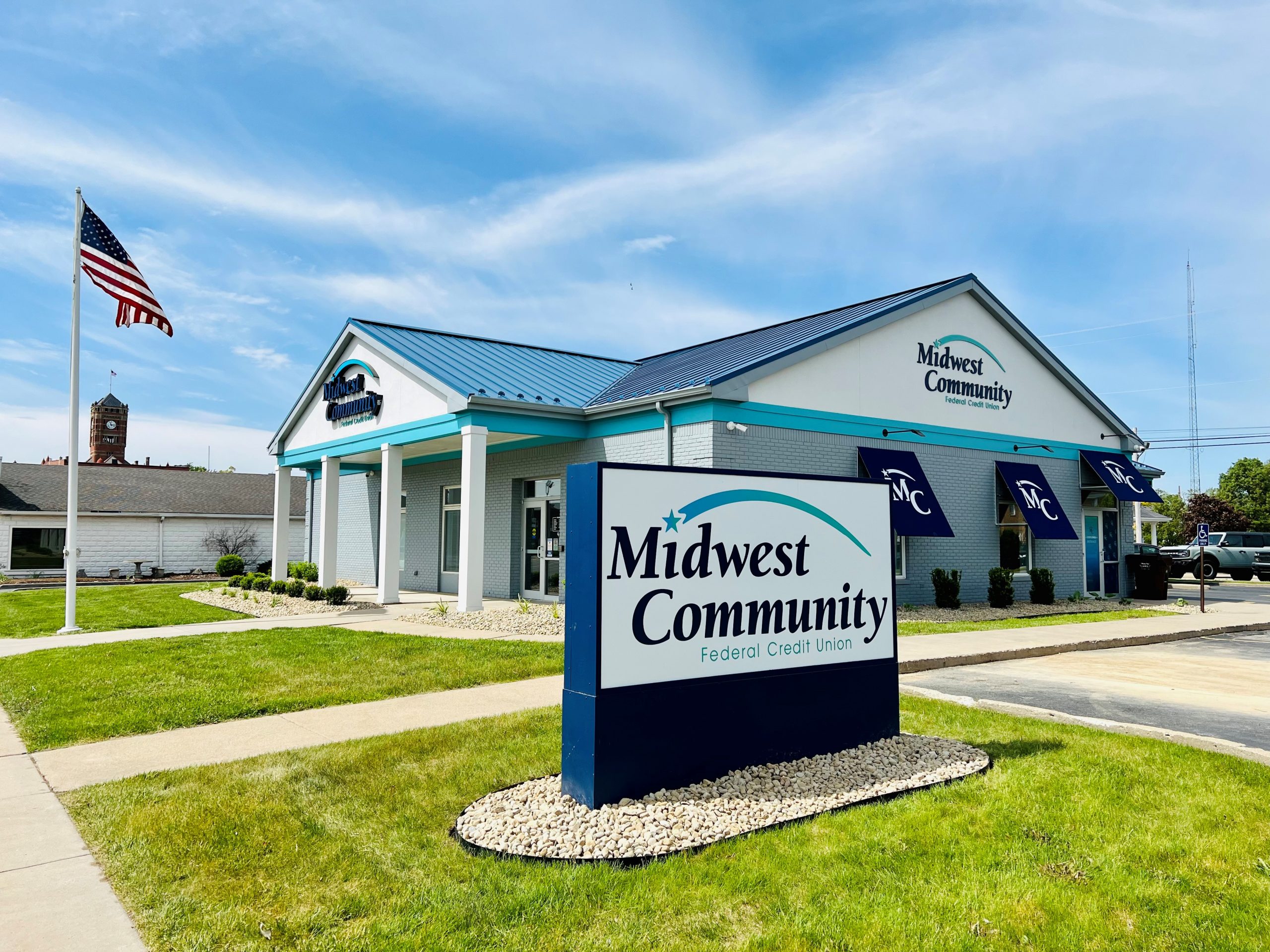 |