





A Better Way to Bank
The Midwest Community FCU online and mobile banking experience makes managing your money simpler, faster, and more secure—with powerful new tools, enhanced features, and a fresh look that lets you bank with confidence anytime, anywhere.
This page contains helpful tips and resources, so you know what to expect every step of the way.
Benefits of MC Online Banking
⚡ Fast Payments & Transfers
Move money quickly and easily—whether you’re paying bills or sending funds to friends and family.
💸 Smart Money Management
Track spending, set goals, and stay on top of your finances with built-in budgeting tools.
🔒 Upgraded Security
Enjoy peace of mind with advanced security features that help keep your information safe.
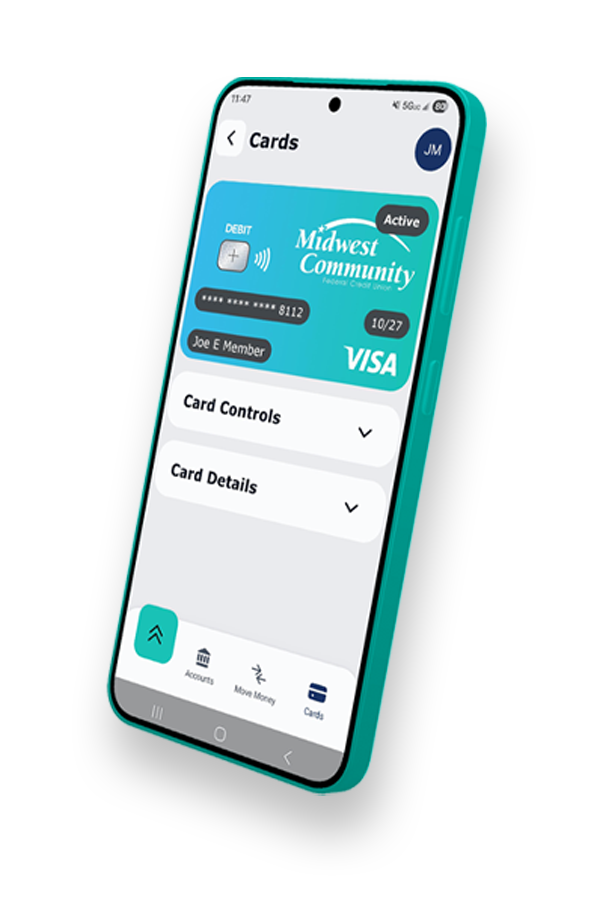

Online Banking & MC Mobile Links
You can log into digital banking on desktop by clicking here, or by clicking “Sign In” on our homepage. The iOS and Android apps can be found at the links below.


Online Banking Features and Benefits
- View your accounts
- Pay your bills
- Get e-statements
- Transfer money between accounts
- Manage your VISA cards
- Set up and manage account alerts
(text and email)
Log in or Register

Mobile App Features and Benefits
- Sign in with FaceID or TouchID (Apple) or Fingerprint (Android)
- Use Quick Balance to view account balances without signing in
- Transfer funds between accounts
- View account balances and transactions
- Make loan payments
- Deposit checks
- View check copies
- Pay bills
- Access Statements
- Left/right-handed modes
- Full Neurodiverse features including options for epilepsy, dyslexia, color blindness, and visual sensitivity
…and more!
Need Help Getting Started?
We’re here for you. Check out our quick tutorials or contact our team for support.
Online & Mobile
Banking Alerts
Digital Banking
Virtual Tour
How to Create a Member-to-Member Transfer Code
Setting Up Member-to-Member Transfers
How to Customize Your Account View
How to Set Up Skip-a-Pay
Frequently Asked Questions
Q: Why am I not receiving the verification codes?
First verify that you are entering the correct username and password. If either of those credentials are incorrect, you will not receive a code. If this is the first time you are logging into the upgraded site, please reach out to us by calling or texting 419-783-6500. If you have previously logged in, please click on Trouble Signing In and follow the instructions to recover your username or change your password. Still having trouble? Give us a call for help!
Q: Am I able to change the language in my online/mobile banking?
Yes, currently our online banking is available in both English and Spanish. To switch to a different language, simply go to Profile & Settings > Settings > Customization > Language > English or Español. Your screen will then automatically update to the language of your choice.
Q: What kinds of accessibility options do you offer?
We offer a range of fonts and color themes to better your online banking viewing experience. To customize your theme, go to Profile & Settings > Settings > Customization > Appearance > Current Theme. To change fonts go to Customization > Fonts > Current Font. From here, there are a multitude of accommodations for colorblindness as well as dyslexia. Simply click whichever best suits your needs and the system will update accordingly.
Q: Can I activate my card on the app?
No. To activate your debit card, please call 866-985-2273 from the phone number associated with your MCFCU account. To activate your Visa credit card, please call 800-553-4291.
Q: How do I set up alerts for my credit card?
To set up alerts on your credit card, you must first go to the app tray/dashboard and then click Cards > Manage Card > More > Notification Settings. This will allow you to customize how you would like to get transaction alerts on your selected card.
Q: How do I set up biometrics on my MC Online app?
IOS Users: To set up Face ID to log in to your MC Online app, click on the profile icon in the top right corner > Settings > Mobile Features > Toggle on Face ID.
Android Users: To set up a fingerprint scan for log in to your MC Online app, click on the profile icon in the top right corner > Settings > Mobile Features > Toggle on Fingerprint.
Q: I forgot my username/password. How can I get back into my account?
If you have forgotten your log in credentials, please go to Trouble Signing In? below the Sign In button at the home page. Follow the prompts to retrieve your username or reset the password.
Q: How can I block/unblock my debit card?
To block or unblock your debit card, click on the Card icon. Locate and click on the card you want to block/unblock, then click the Card Management button. Your card details will display with a green Lock button or red Unlock button. Tap and confirm your choice. If you need additional support, please reach out to our Member Services team by texting or calling 419-783-6500.
Q: How can I change my personal information, like phone, email or address?
Tap the icon with your initials in the top right corner and select Settings, the Personal Information. Your contact information will be displayed. Click the pencil icon to edit your contact information and tap Save or Update when finished.
Q: How can I find recent checking transactions?
From the accounts page, click on your checking account. The most recent transactions will be listed below. To see more, click on See All Transactions or use the filter icon to research a particular transaction, date range, or series of checks.
Q: How do I find my credit card statements?
To find your credit card statements from Online Banking or the app, click/tap on the card icon and select your credit card. Tap “Manage Credit Cards”, under Card Controls. If you’ve not registered your card, follow the prompts to do so. Locate the Statement icon and click/tap it to view available statements by month. Just click/tap on the month you wish to view.
Q: Where can I find my Routing number?
Click on More Services, then tap Routing & Account numbers. MCFCU’s Routing number will be listed at the top of the page. Below you will find your account numbers and share IDs.
Additional Resources
Mobile Wallet
Now you can pay with your Midwest Community Visa® using your preferred mobile wallet (Apple Pay, Samsung Pay, Google Pay).
Enjoy all the benefits of your Midwest Community Visa® on your mobile device. Learn more about your favorite mobile wallet option below.
Apple Pay – https://www.apple.com/apple-pay/
Samsung Pay – https://www.samsung.com/us/samsung-pay/
Google Pay – https://pay.google.com/about/
Visa Click to Pay – https://www.visa.com/en-us/personal/products/click-to-pay
Using a mobile wallet is simple: Paying in stores or within apps has never been easier, safer, or more private.
Paying is secure: Your card information is secure because it isn’t stored on your device or shared when you pay.
E-Statements
The delivery speed, storage and security issues of paper statements and account notices are eliminated when you sign up for eStatements/eNotices. Two years of your most recent account statements are available online for you to print, download and save electronically. The eStatement system is available 24/7 and is surrounded by a secure authentication process when you log into MC Online to ensure personal access and security of your information. You can also view your tax notices, our latest newsletters and product news, and any current personal account notifications.
This handy information is conveniently located in MC Online under Statements/Notices.
Access or Enroll
Still Have Questions?
Use this form to reach our Digital Branch by email, or you can call/text 419-783-6500.
Branch Locations
Main Office08770 State Route 66 Defiance, OH 43512 view map Call or Text: (419) 783-6500 Fax: (419) 783-6550 ATM Access Available | Drive-up Hours: Mon - Thur: 8:00am - 5:30pm Fri: 8:00am - 6:00pm Sat: 8:00am - 1:00pm Sun: CLOSED Lobby: Mon - Thur: 8:30am - 5:00pm Fri: 8:30am - 5:30pm Sat: 8:30am - 1:00pm Sun: CLOSED |  |
Napoleon Branch1429 North Scott Street Napoleon, OH 43545 view map Phone: (419) 599-5522 Text: (419) 783-6500 Fax: (419) 599-5537 ATM Access Available | Drive-up Hours: Mon - Thur: 8:30am - 5:00pm Fri: 8:30am - 5:30pm Sat: 8:30am - 12:00pm Sun: CLOSED Lobby: Mon - Thur: 8:30am - 5:00pm Fri: 8:30am - 5:30pm Sat: 8:30am - 12:00pm Sun: CLOSED | 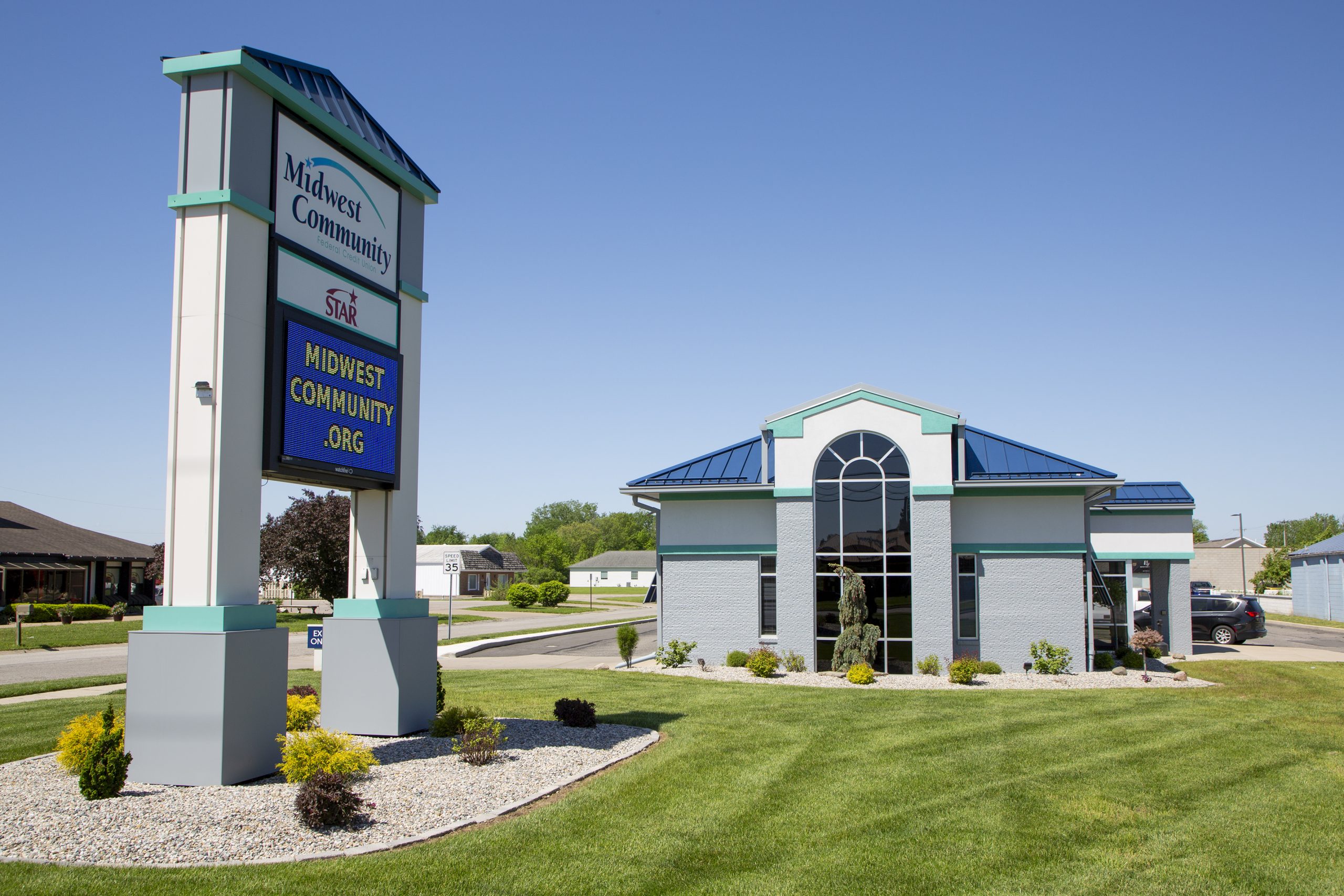 |
Bryan Branch221 N. Main Street Bryan, OH 43506 view map Phone: (419) 633-0571 Text: (419) 783-6500 Fax: (419) 633-0572 ATM Access Available | Drive-up Hours: Mon - Thur: 8:30am - 5:00pm Fri: 8:30am - 5:30pm Sat: 8:30am - 12:00pm Sun: CLOSED Lobby: Mon - Thur: 8:30am - 5:00pm Fri: 8:30am - 5:30pm Sat: 8:30am - 12:00pm Sun: CLOSED | 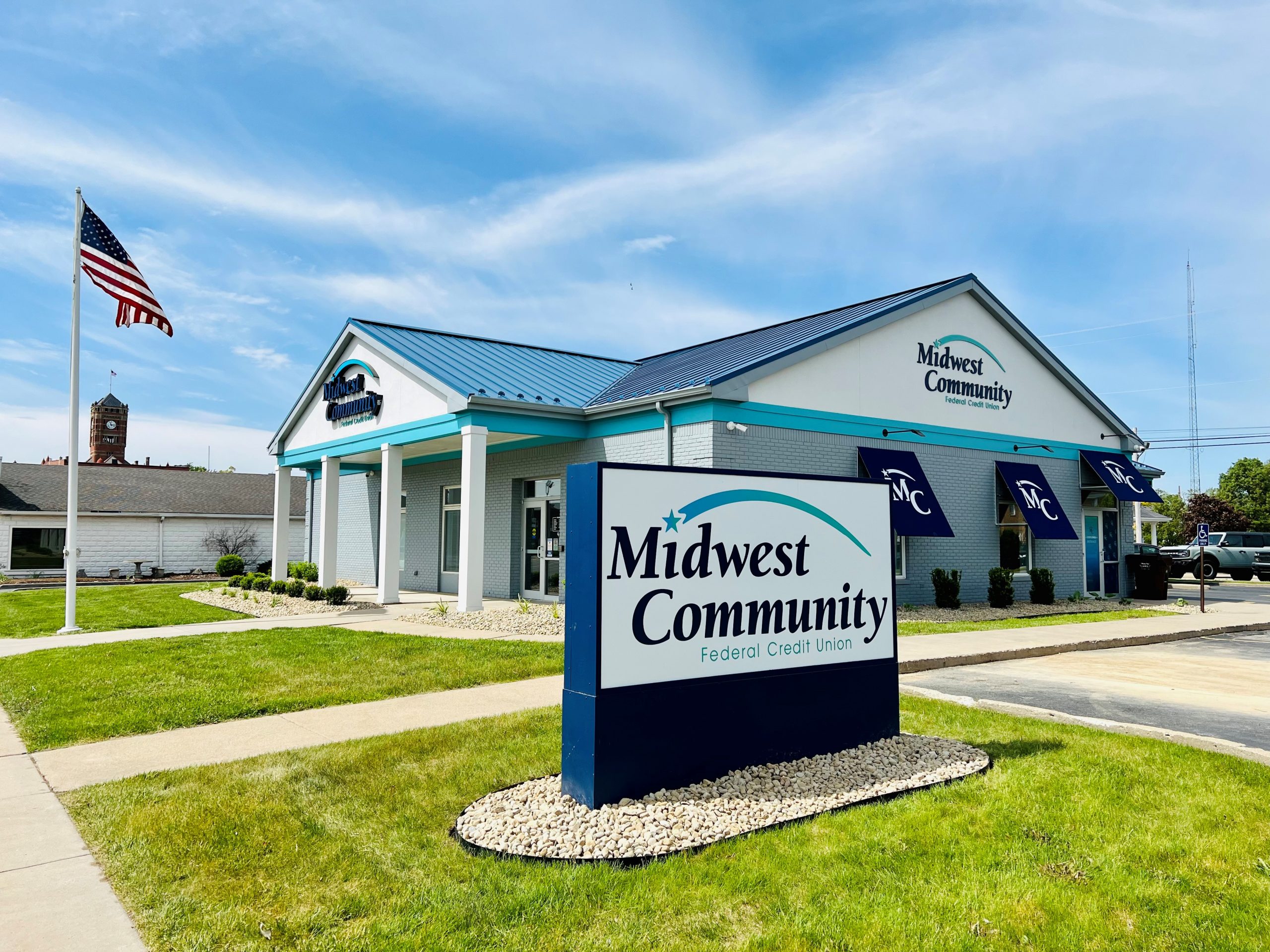 |